Menus
Where you can go from the lobby and what each place is for. Menu names match the game screens.
Contents Menus
Lobby
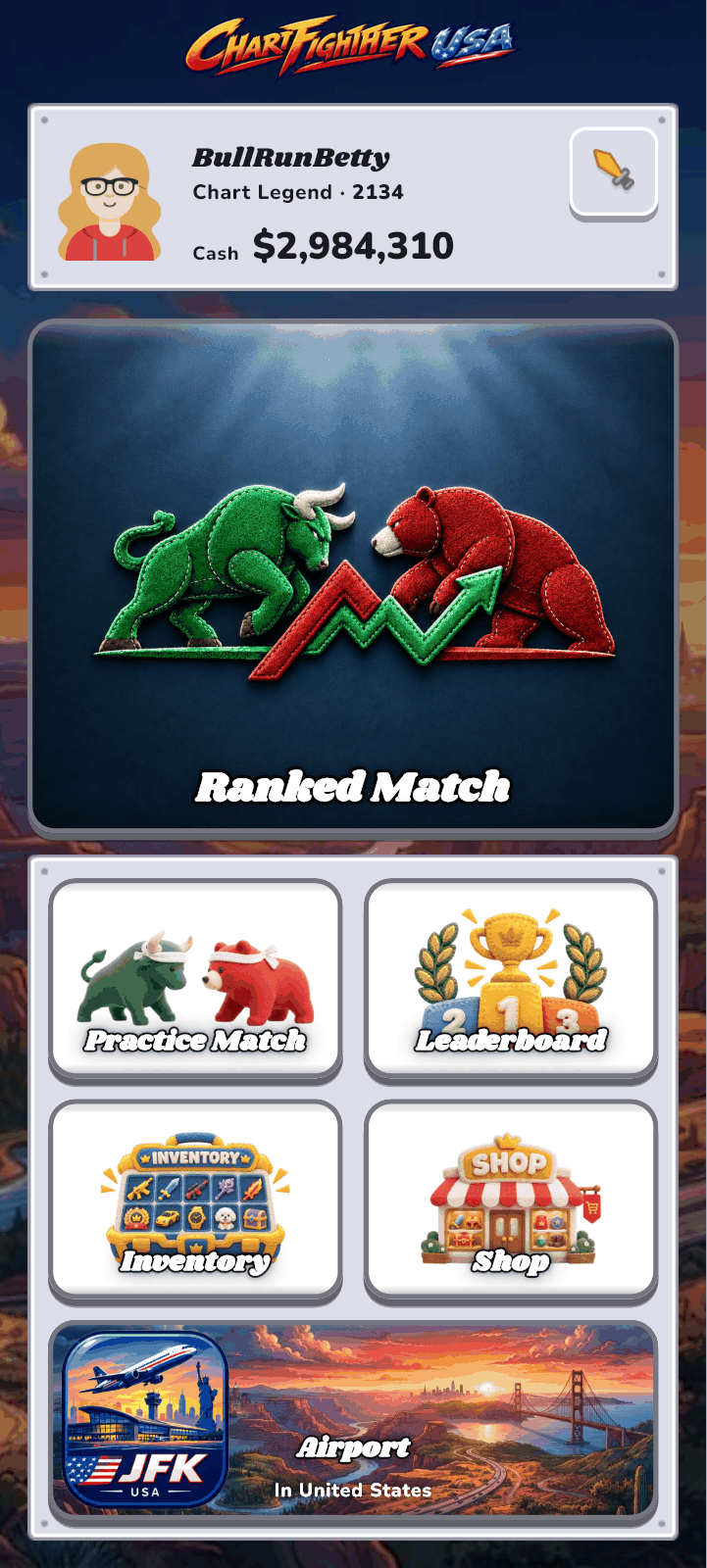
- Your panel shows your tier, rating and cash. Tap it to open “My Profile”.
- The weapons chip in your panel sums up what you have equipped. Tap it to open “Weapons”.
- The menu cards take you to Ranked Match, Practice Match, Leaderboard, Inventory, Airport and Shop.
Menu by menu

Ranked Match
Open from: Lobby card
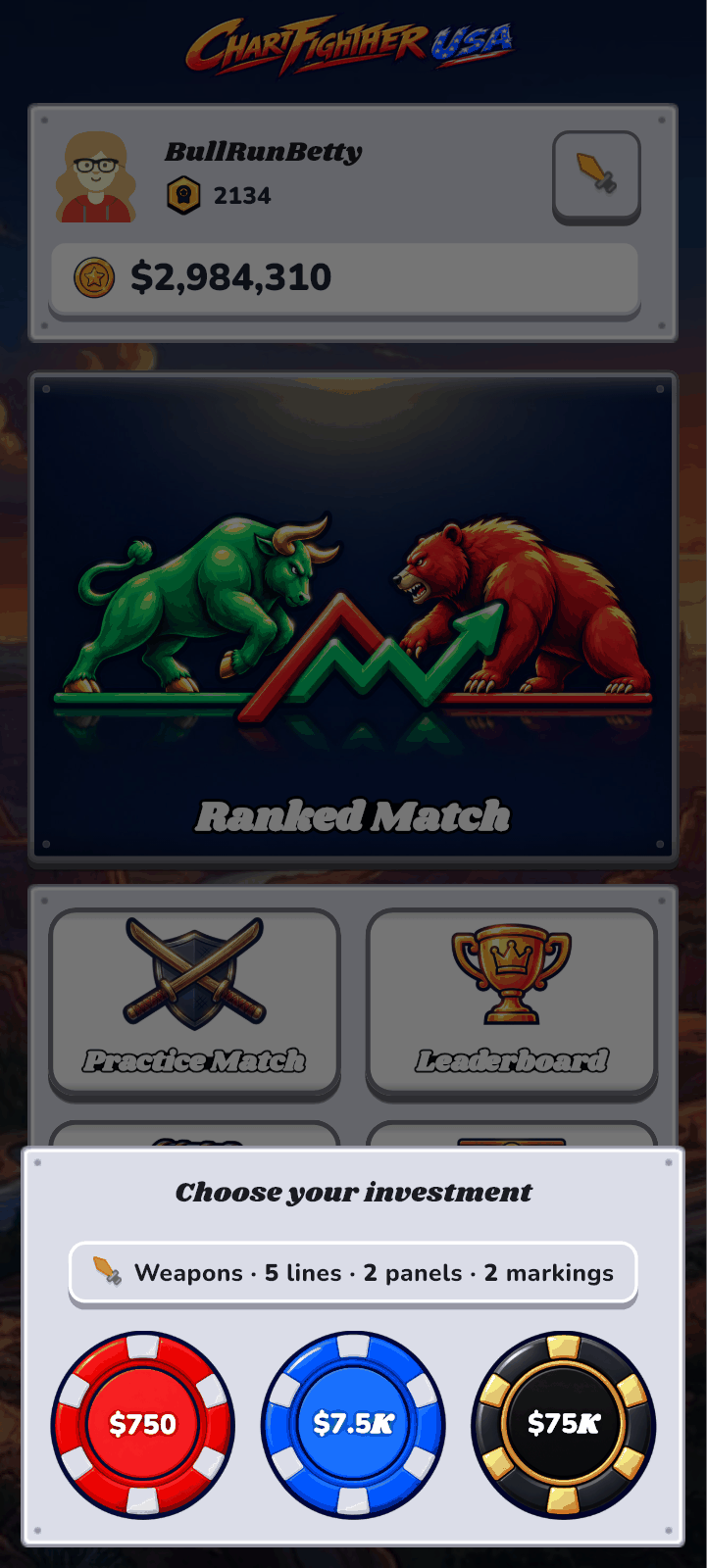
- Choose an investment level and join the queue.
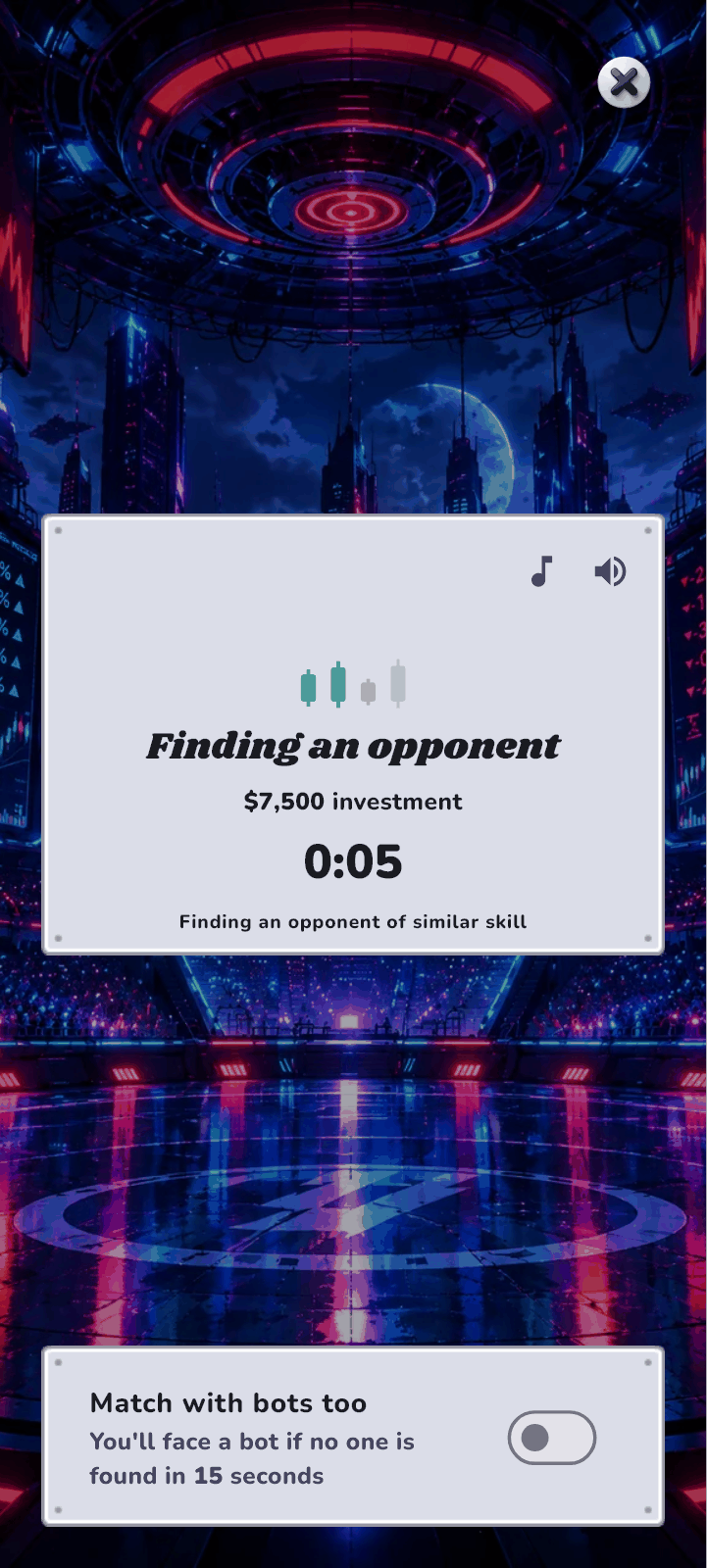
- Opponents with a similar rating are searched first, and the range widens the longer you wait.
- “Match with bots too” — You'll face a bot if no one is found in 15 seconds.
- While you wait, you can turn Music and Sound effects on or off.
- You cannot join while bankrupt.
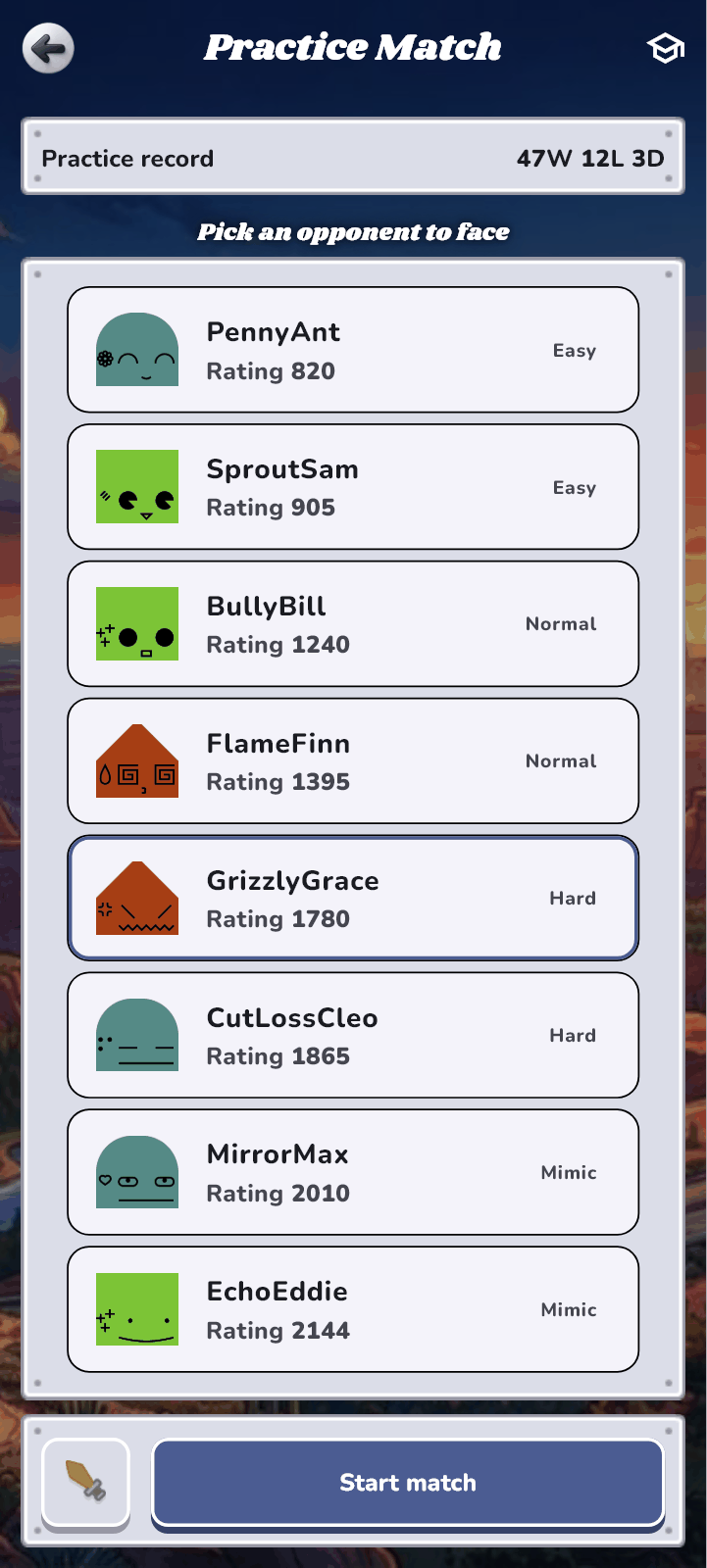
Practice Match
Open from: Lobby card
- Pick a bot and play against it. Each bot shows its placement rating and difficulty (Easy, Normal, Hard and more).
- The investment is always the 1M amount, and your rating and wallet do not change.
- Practice results are kept as a separate record. You can practice even while bankrupt.
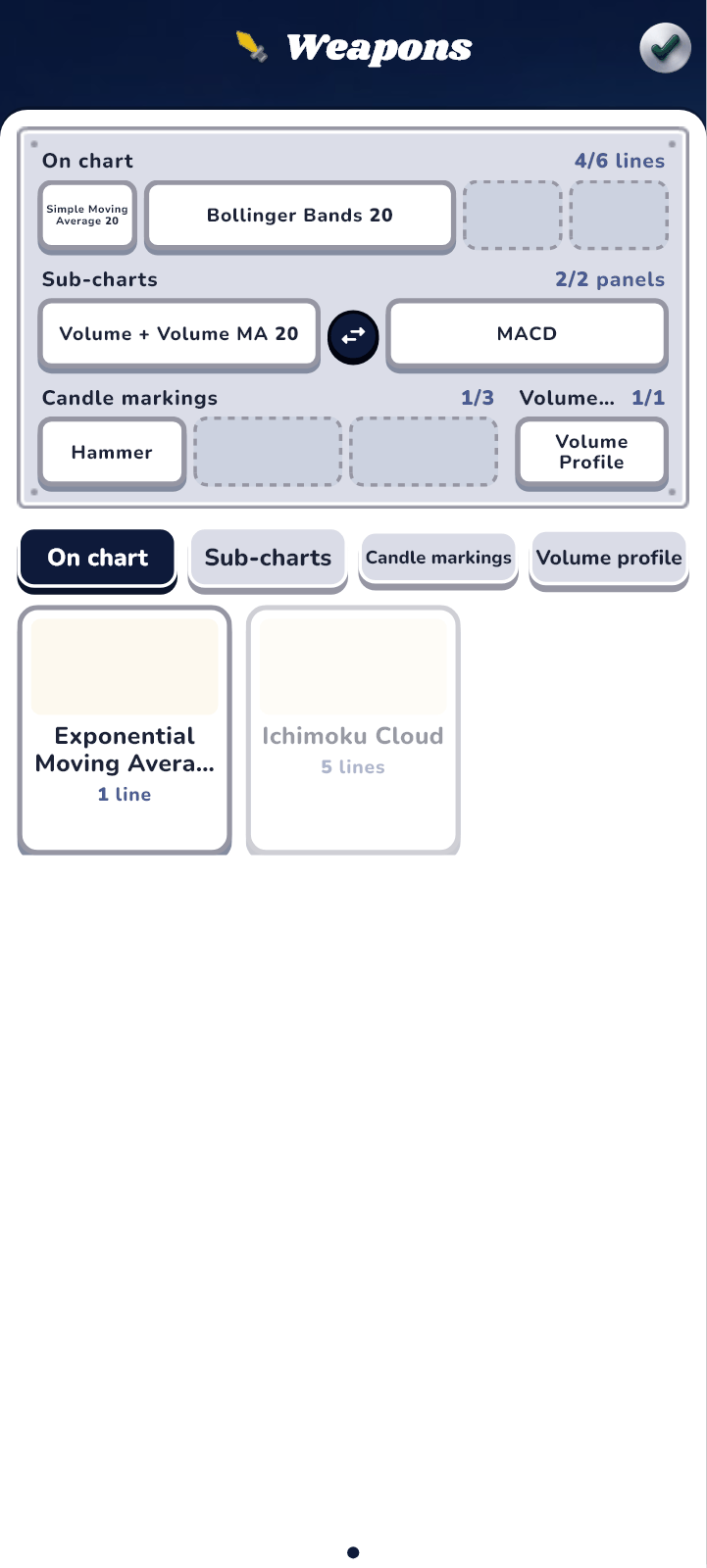
Weapons
Open from: The weapons chip in the lobby · “My Profile” · choosing an investment · choosing a “Practice Match” opponent
- Equip weapons (indicators) you own by pressing the + button. Equipped weapons are drawn on the chart in the match screen.
- There are four kinds of slots — “On chart”, “Sub-charts”, “Candle markings” and “Volume profile” — and each holds a set number. If you run out of room, the screen tells you what to remove.
- Weapons with settings can be equipped with your own values.
Shop
Open from: Lobby card
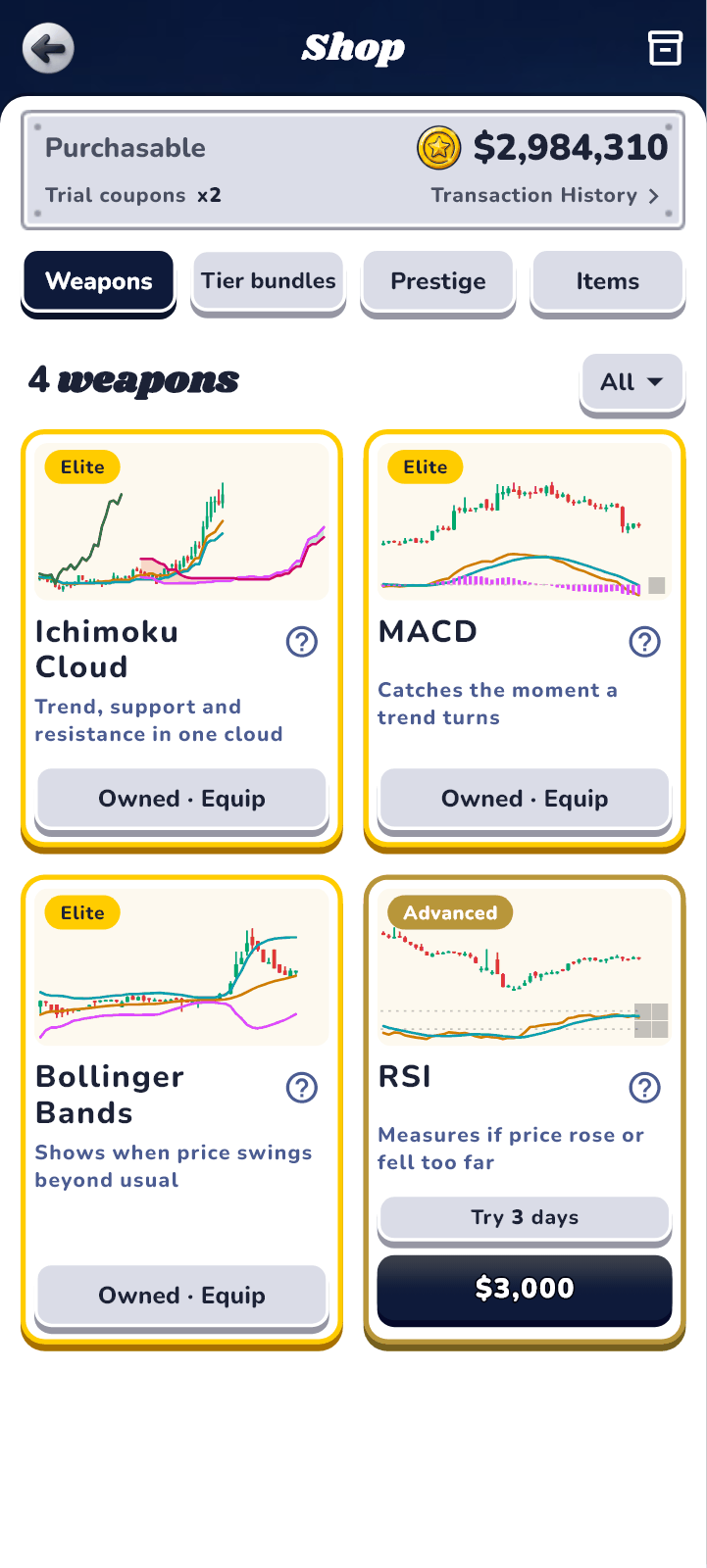
- Split into four sections: Prestige Collection, Markers, Items and Weapons.
- You can go straight to your Inventory from the shop.
Inventory
Open from: Lobby card · Shop
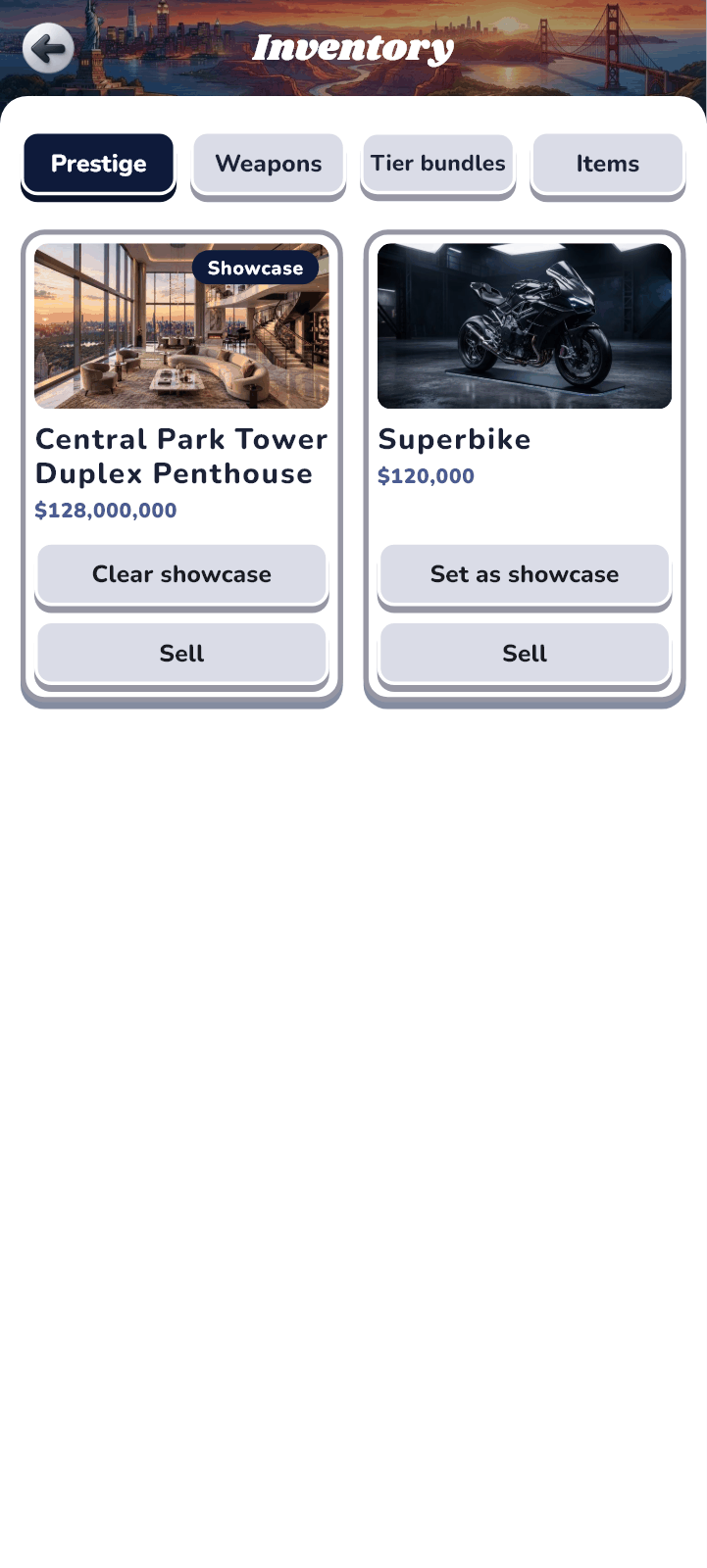
- Everything you bought or received is here. Weapons on trial or equipped are marked.
- Use “Set as showcase” on one item from the Prestige Collection and it decorates the header background of your player card.
- Weapons and Prestige Collection items bought with game money can be sold back. Starter weapons, Items and items bought with real money cannot be sold back.

Leaderboard
Open from: Lobby card
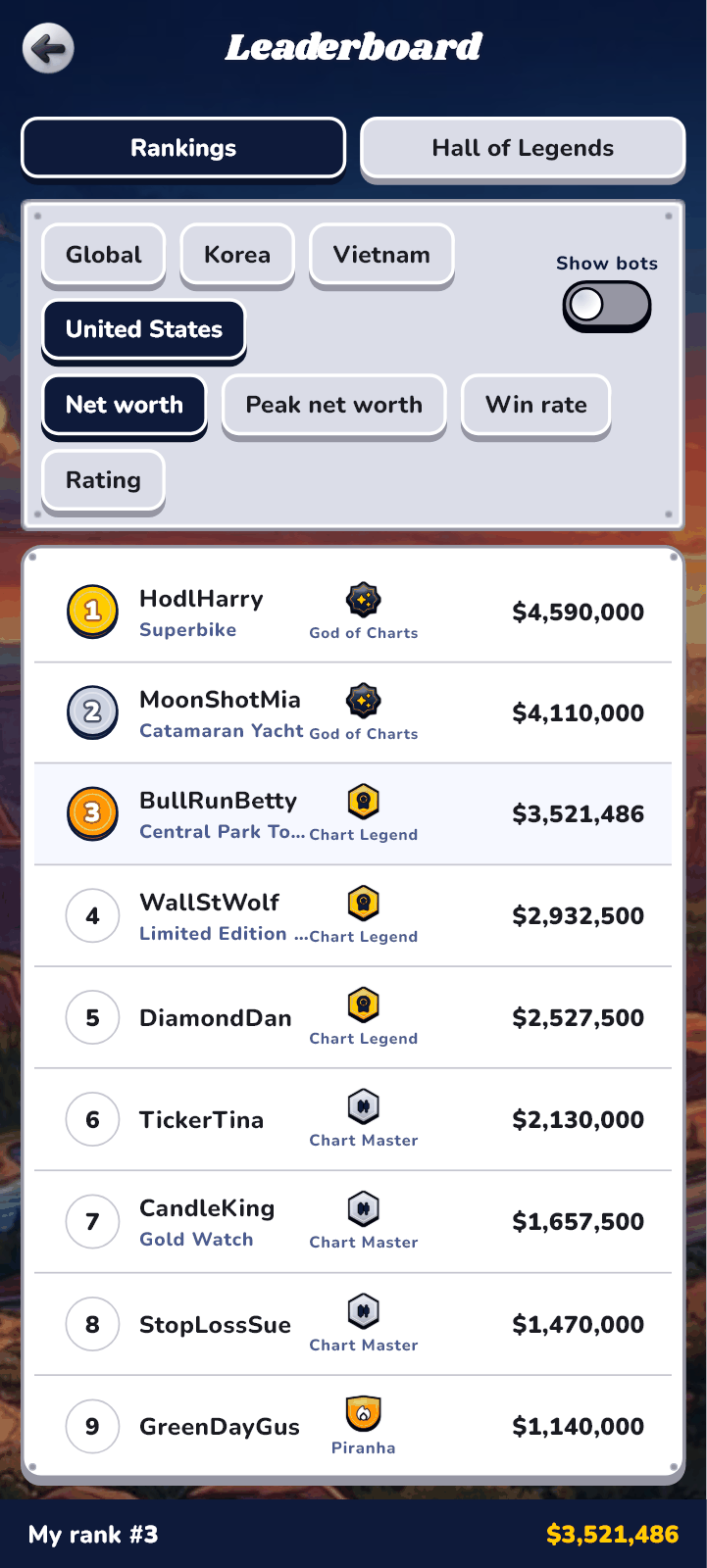
- Two tabs: “Rankings” and “Hall of Legends”. The “Hall of Legends” lists players who reached a landmark net worth.
- Net worth is the money you grew through play — cash plus assets, minus the money you were given at the start.
- Peak net worth is the highest net worth you have ever recorded. It is never erased, even by bankruptcy.
- Global rankings are published every morning.

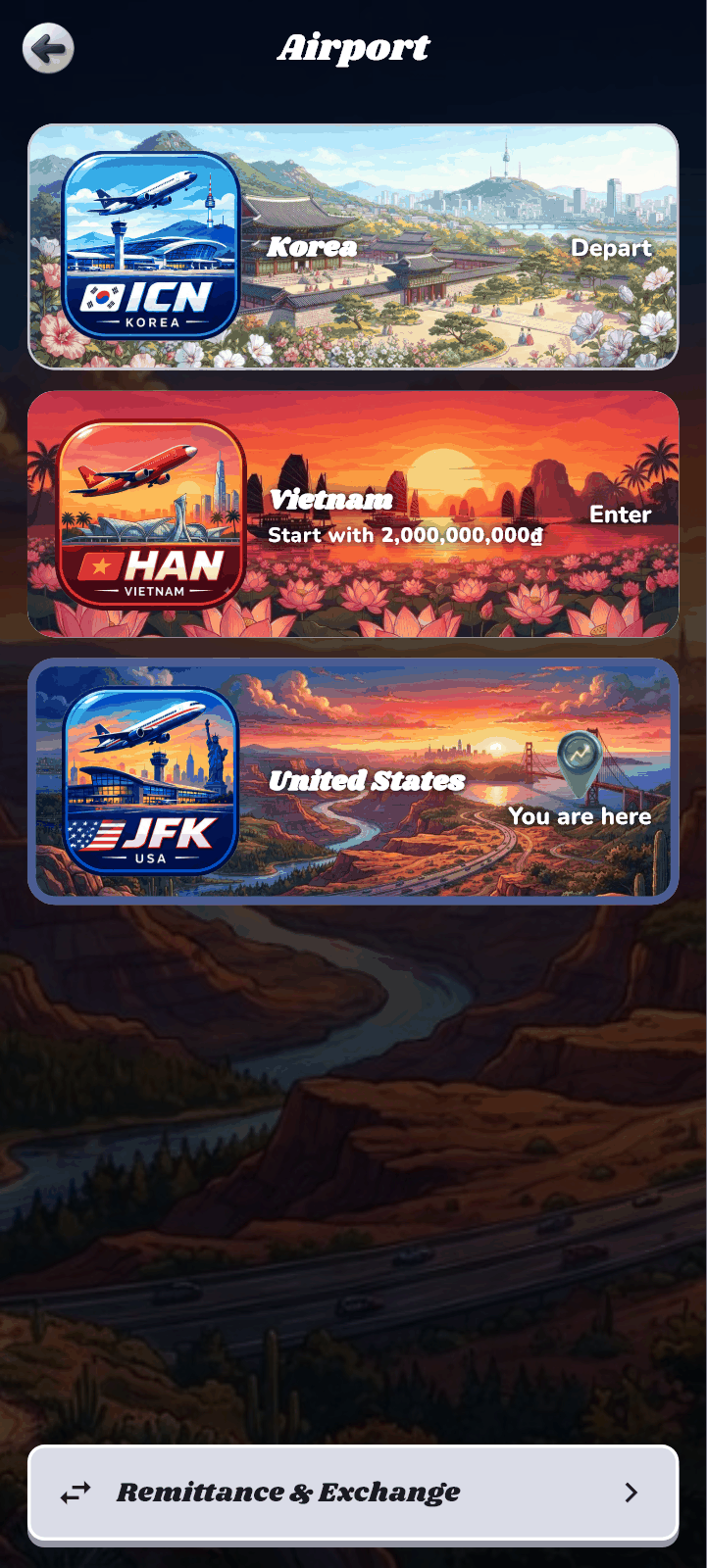
Airport
Open from: Lobby card
- Shows the country you are in, and lets you “Depart” to countries you have already opened.
- To go to a country for the first time you must “Enter”. After your first country, entering a new one needs a passport (given at Chart Master).
- You receive the starting wallet when you first open a country. Wallet, record, shop and inventory are kept separately for each country; your rating is shared.
- “Remittance & Exchange” lets you send money to your wallet in another country, at an exchange rate and with a fee.
| Country | Starting wallet |
|---|---|
| Korea | ₩100,000,000 |
| Vietnam | 2,000,000,000₫ |
| United States | $75,000 |
My Profile
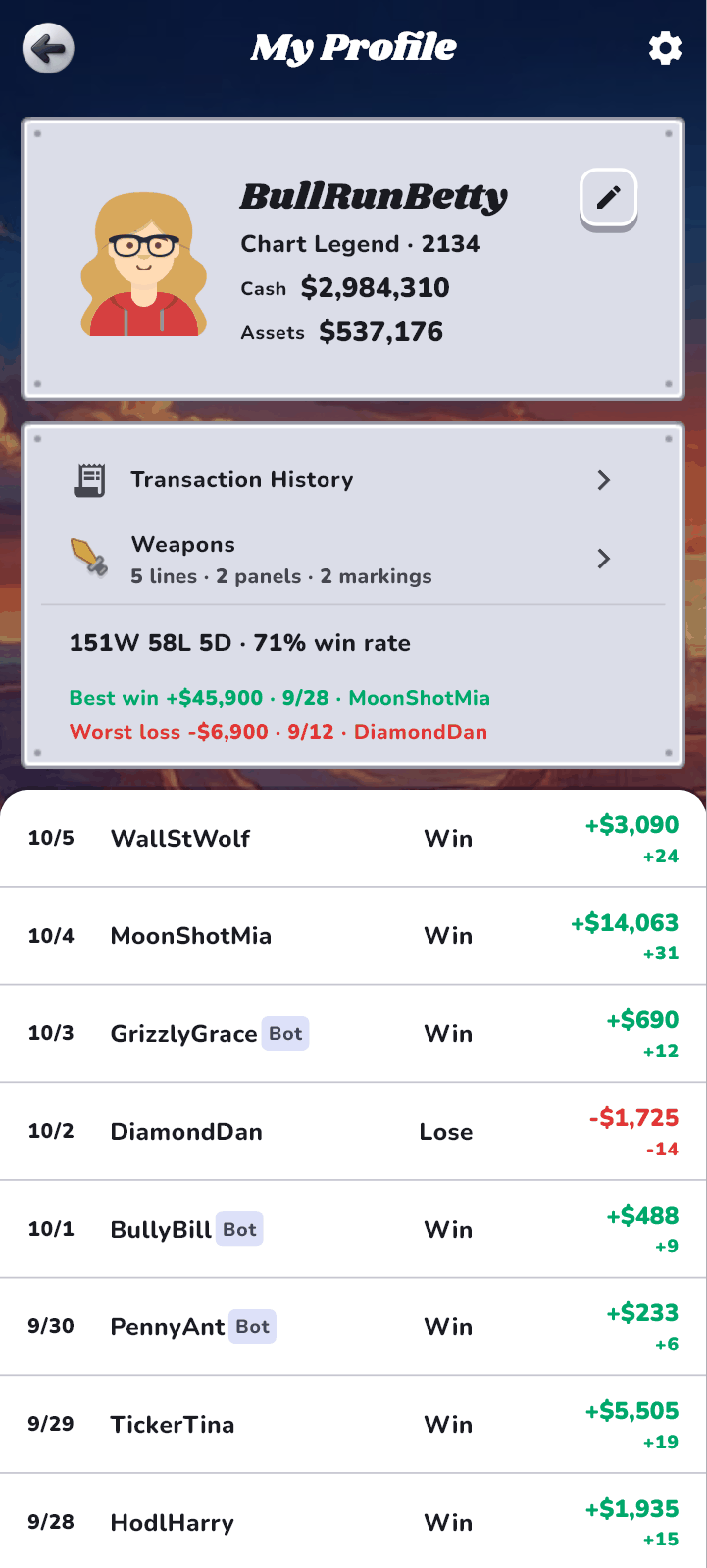
Open from: Your panel in the lobby
- See your record (wins, losses, draws and win rate), your best profit and worst loss, your home country and current country, and whether you hold a passport.
- Press the pen button next to your nickname to “Change nickname”, or press your face to “Change your face”.
- Your past ranked matches are listed. Press an opponent’s name in the list to see their player card.
- “Transaction History”, “Settings” and “Weapons” also open from here.
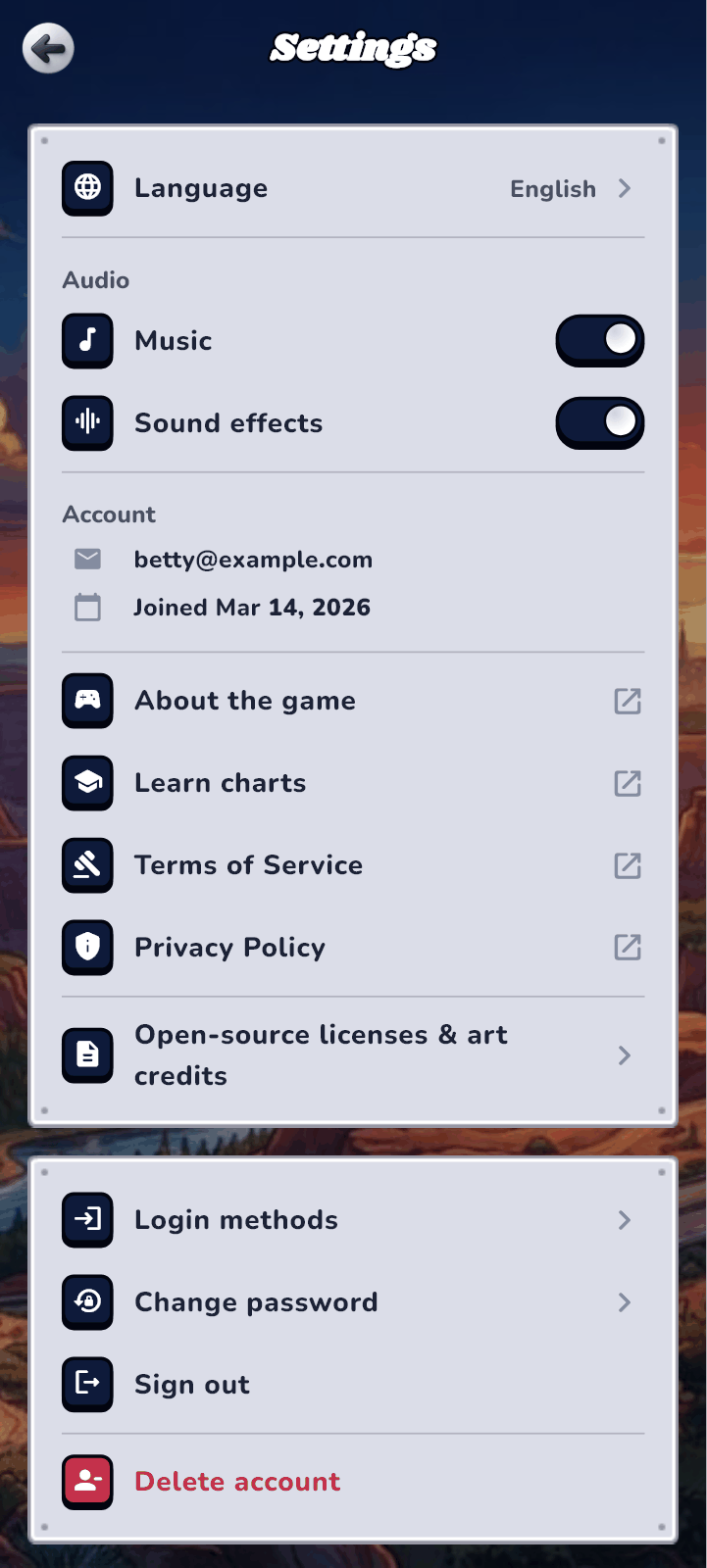
Settings
Open from: My Profile
- Choose your Language, or “Follow system setting”.
- Adjust Music and Sound effects.
- Account — see how you sign in and when you joined; Change password, Sign out or Delete account.